When your computer is well-specified, it’s possible for you yourself to become the bottleneck. It doesn’t matter how fast your CPU is if your hands simply can’t keep up. A good mouse can unlock new levels of control in your CAD software of choice.
Standard Mouses
Scroll Wheel
Before discussing more feature-packed mice, it’s important to familiarise yourself with the shortcuts available on standard mice.
Scrolling up and down zooms in and out respectively.
Clicking and holding the scroll wheel and dragging allows you to pan freely in any direction.
Holding Shift while dragging with the scroll wheel allows you to orbit in 3D.
Double clicking the scroll wheel zooms to fit the view.
Side Buttons
Many mouses feature buttons on the side to navigate back and forward on websites. These buttons can often be remapped, allowing for easy undo and redo shortcuts.
Logitech MX Master
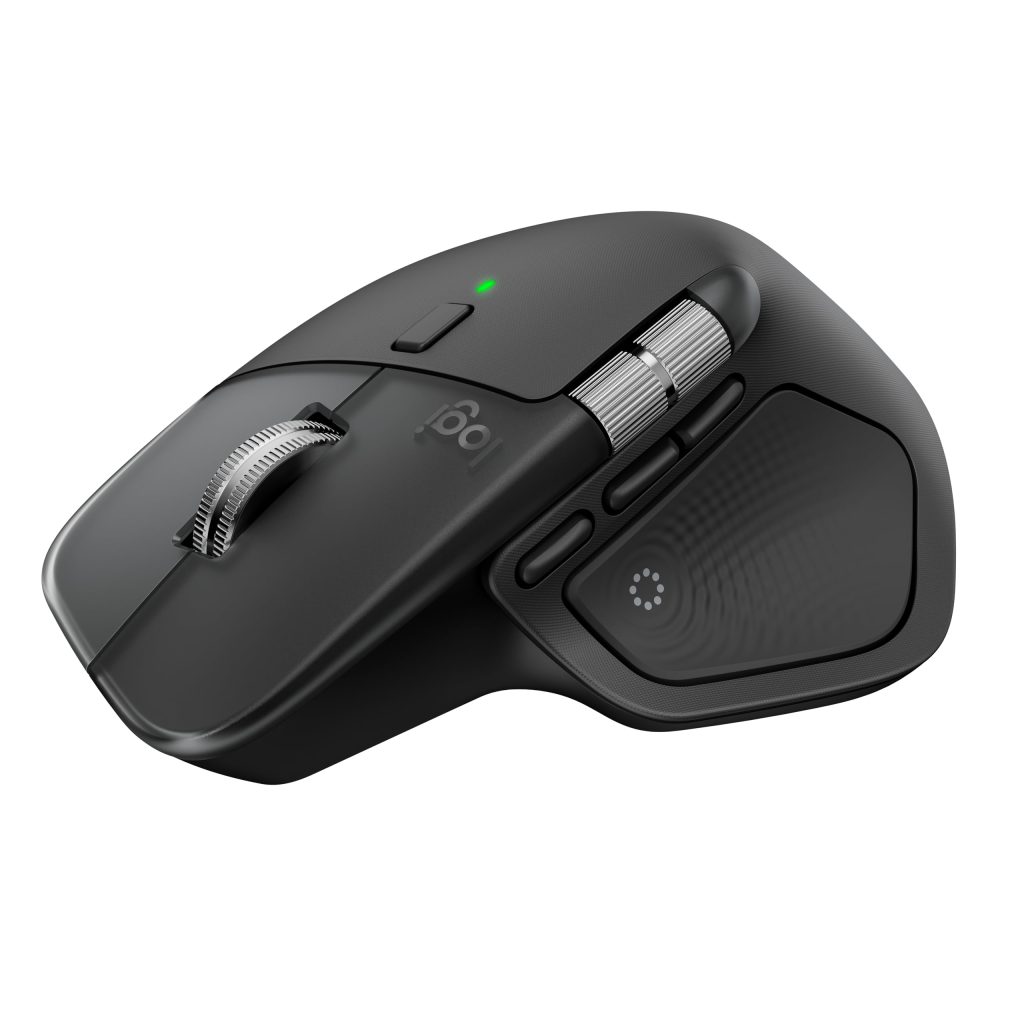
The Logitech MX Master series of mouses feature additional functionality that can add a lot to a CAD workflow.
Horizontal Scroll
The MX Master features an additional scroll wheel on the thumb that can be used to pan left and right in CAD programs.
Gesture Button
The MX Master also features a button under the thumb that offers extensive functionality. This button offers one function when clicked, and 4 additional functions when held and dragged up, down, left or right. These can be mapped to key presses or system shortcuts depending on your preference.
For example, you may want to hold and drag up to click “WT” (tile windows in Revit), drag down to minimise all your open applications, and drag left and right to switch between virtual desktops.
3Dconnexion SpaceMouse
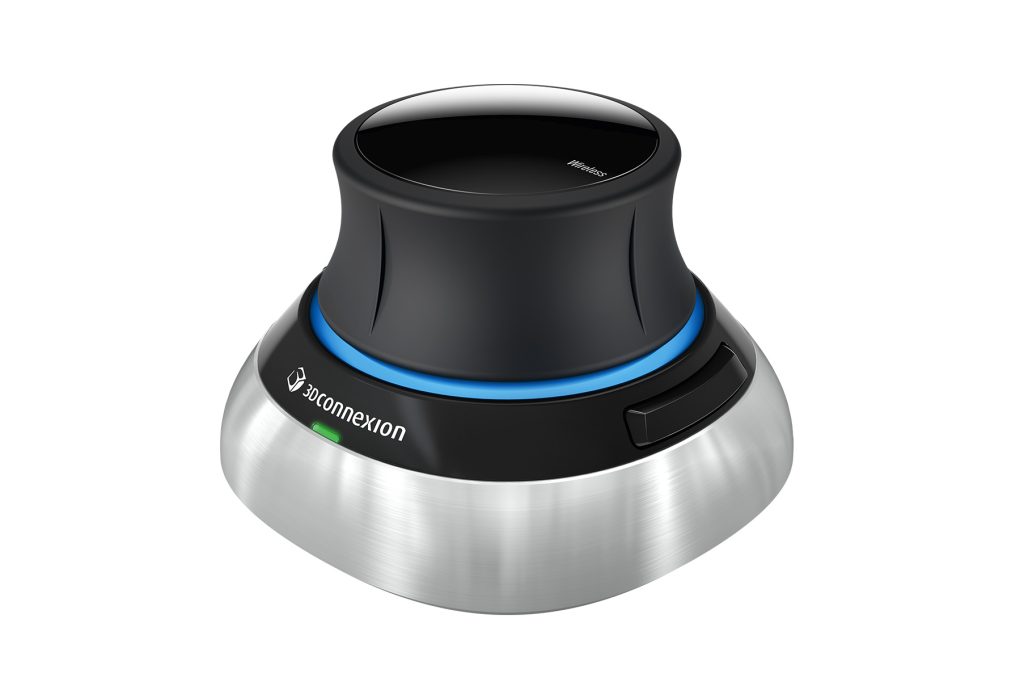
Rather than just being a hardware swap, the SpaceMouse allows for a two-handed workflow with unparalleled control.
The SpaceMouse sits in the non-dominant hand and handles navigation: pan, zoom and rotate – often simultaneously – through its 3D controller cap. The MX Master (or other mouse) stays in the dominant hand for selection, editing and precise pointer control. Instead of constantly switching a single mouse between “move the view” and “do the work,” each hand has one job.
Ergonomics
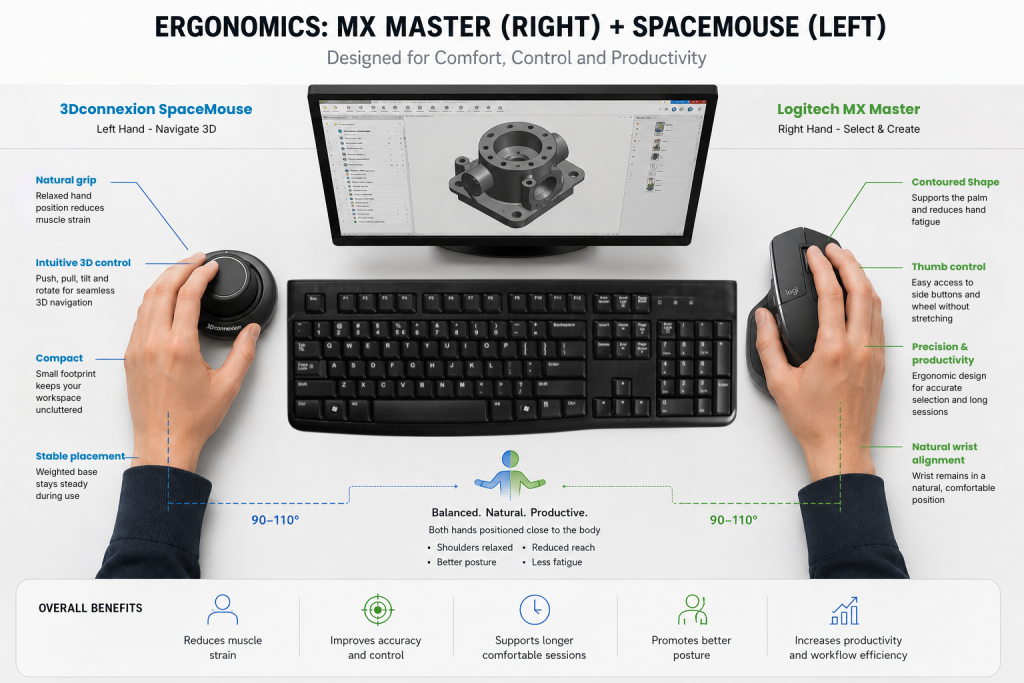
Apart from the advanced functionality, these devices offer improved ergonomics. Repetitive strain is a real occupational factor in CAD work. Sustained fine motor control over a full project day, repeated daily across project timeline, is exactly the kind of load that ergonomic design is meant to address.
Having one device for each hand allows you to keep your arms spread apart from each other, reducing strain over the course of a working day.
The MX Master takes this further, with a horizontal tilt that lets your arm rest at a more natural angle.
Where This Fits in a Complete Workstation
Modena Computers builds high-performance workstations for CAD professionals. We take into account your complete workflow to spec out a system entirely for you, and this includes your input devices.
Specifying a new workstation, or reviewing your current setup? Get in touch with us, and we’ll be happy to talk through peripherals as part of the build.