Quick answer: there’s no single best computer for Revit, AutoCAD, Twinmotion and FARO Scene each stress a workstation differently. Revit and AutoCAD are bound by single-core CPU speed. Twinmotion is bound by GPU and VRAM. FARO Scene is bound by RAM capacity and storage bandwidth. The right workstation is specified around which of these applications your team actually runs, and how often.
Most architecture and engineering teams don’t run just one piece of software, they run a pipeline. A project might start life as a laser scan, captured on-site and registered in FARO Scene. It gets modelled and drafted in Revit or AutoCAD, then it’s presented to a client as a real-time walkthrough in Twinmotion. Three very different jobs, on three pieces of software with three very different hardware appetites.
That’s the trap in specifying “one powerful PC” for this kind of workflow. A machine tuned for one stage of the pipeline can be the wrong machine for another. Here’s what each stage actually needs from the hardware. And here’s how to specify a workstation that holds up across all of it.
Hardware Priorities at a Glance
| Software | Primary Bottleneck | What to Prioritise |
|---|---|---|
| Revit | Single-core CPU clock speed | High-frequency CPU; 32–64GB RAM |
| AutoCAD | Single-core CPU clock speed | High-frequency CPU; 32GB+ RAM |
| Twinmotion | GPU and VRAM | Single high-VRAM GPU (12GB+) |
| FARO Scene | RAM capacity and storage bandwidth | Balanced CPU; 64–192GB+ RAM; fast PCIe 5.0 SSD |
What’s the Best Workstation for Revit and AutoCAD?
Revit and AutoCAD share a hardware profile, because they share an architectural quirk. Both are still predominantly single-threaded for their core editing work. Regenerating a view, resolving wall joins, updating a schedule, recalculating geometric constraints: this work is sequential. It scales with clock speed, not core count. A machine with more cores doesn’t automatically feel faster in day-to-day modelling or drafting.
Multi-core performance still matters, just not for the same tasks. Vector printing, IFC export, worksharing sync, and background analysis (structural, MEP, energy) all lean on multiple cores. A workstation specified purely around single-thread speed, with everything else stripped back, will feel fast while modelling, but it’ll bottleneck the moment a large export or sync kicks off.
RAM scales with model size in both applications. A useful rule of thumb for Revit: size system memory at roughly 20 times your largest working .rvt file. Factor in linked models and browser overhead too. In practice:
- Smaller projects: 32GB is a sensible working minimum for daily production, not just the bare minimum to open the file.
- Larger or multi-discipline projects, heavy linked files, cloud worksharing: 64GB gives the system breathing room rather than leaning on disk swap the moment a second-discipline model gets linked in.
AutoCAD is somewhat lighter on RAM for pure 2D drafting. However, the same logic applies once you’re working with large drawing sets, XREFs, Map 3D, Electrical, or other specialised toolsets. 32GB is the realistic professional baseline, scaling to 64GB for large coordinated models.
Storage matters for both. Constant writes to temp files, local caches, worksharing sync and autosave add up fast. A fast NVMe SSD noticeably improves how quickly either application opens, saves and syncs, compared with a standard SATA drive.
GPU requirements are moderate rather than extreme. Both applications use the graphics card mainly for viewport display, line rendering and navigation, rather than heavy computation. That’s shifting slightly, though, as recent Revit releases lean more on the GPU for large-model navigation. An upper-mid-range GPU with adequate VRAM is the sensible target for either application on its own.
What’s the Best PC for Twinmotion?
Twinmotion breaks the pattern entirely. It’s a real-time rendering engine, not a CAD application. Its performance is tied overwhelmingly to the GPU, rather than the CPU. Unlike Revit or AutoCAD, more cores or a higher clock speed won’t move the needle once you’re inside the viewport. The GPU is doing almost all of the work.
VRAM capacity is the single biggest factor. Small scenes run fine on 8GB, but professional scenes with detailed materials, vegetation and lighting benefit from 12GB or more. Twinmotion’s Path Tracer can technically use multiple NVIDIA GPUs through SLI. But that only applies to Path Tracer output, not real-time (Standard or Lumen) rendering. Current-generation NVIDIA cards no longer support SLI at all. So for a workstation bought today, a single high-VRAM GPU is still the right target. RAM plays a supporting role rather than the lead. 32-64GB is the practical range for most professional use. It acts as overflow when a scene exceeds VRAM, rather than doing the heavy lifting itself.
Storage should still be a fast NVMe SSD, since asset loading and scene streaming benefit from it.
Here’s the practical implication: if visualisation is a significant, regular part of your workflow, put the budget toward the GPU. That’s true even if it means being more conservative elsewhere.
What Computer Do You Need for FARO Scene?
FARO Scene is the odd one out, and the one most worth planning for deliberately. It registers and processes scan data captured on-site with a FARO scanner. Its hardware demands scale hard with project size, in ways Revit, AutoCAD and Twinmotion don’t.
Registration, feature extraction and scan positioning benefit from both core count and clock speed, rather than one or the other. A CPU with a genuine balance of the two is the right target. Batch processing across a run of scans leans further into multi-core territory. Teams that regularly register dozens of scans per session, rather than handling one-off jobs, benefit from a healthy core count.
RAM is where project scale bites hardest. FARO’s own guidance calls for a substantial memory floor for its higher-resolution capture modes. That floor scales further for its newer high-density scan data. In practice, 64GB is a reasonable baseline for smaller single-building projects. Firms doing regular multi-scan registration should plan for 192GB upwards. Faster memory also makes a measurable difference to how quickly SCENE can filter and load large project databases.
Storage sees constant, heavy access to SCENE’s project database during import, registration and filtering. A fast PCIe 5.0 SSD isn’t optional here, the way it might be a “nice to have” elsewhere.
The GPU plays a smaller role than it does in Twinmotion. SCENE’s core registration workload isn’t heavily GPU-bound. A dedicated GPU still helps with specific features like colour calibration. It also matters more if your team regularly uses SCENE’s VR walkthrough view.
One Workstation for Revit, AutoCAD and Twinmotion: The Vulcan Build
Most AEC workflows involve modelling in Revit or AutoCAD, and presenting in Twinmotion. A single well-specified workstation covers both stages comfortably. This is exactly what our Vulcan line is built for:
- An Intel Core CPU, like the Core 270K Plus, chosen for single-core performance that keeps modelling and drafting responsive
- RAM sized to your project scale
- Fast PCIe 5.0 NVMe storage
- A GPU capable enough to also handle Twinmotion or similar visualisation work
It’s specified as a complete system rather than a single headline spec.
When You Need More: Large-Scale Point Cloud Workstations
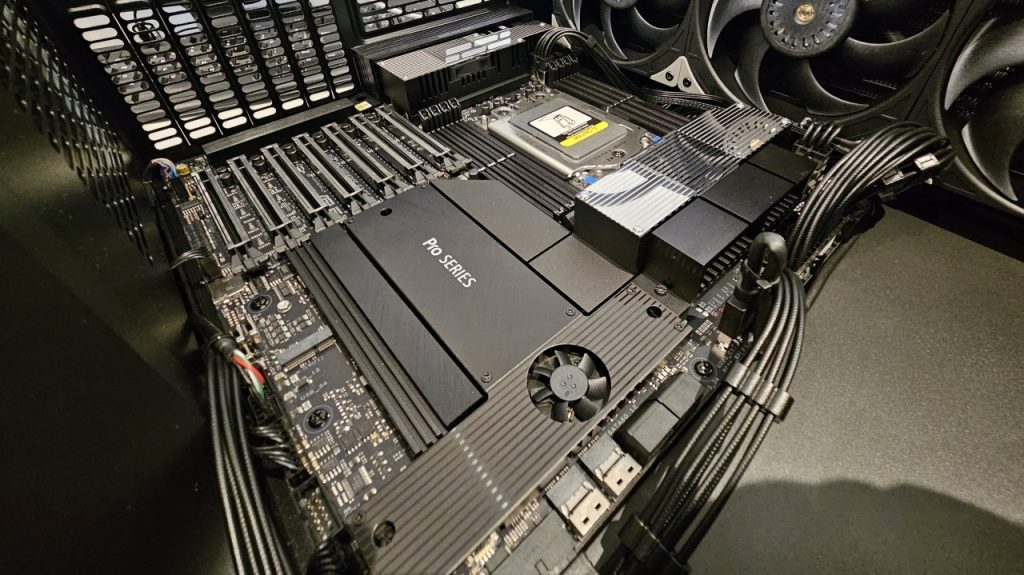
The picture changes with regular, large-scale scanning work. Think multi-building campuses, infrastructure projects, or industrial facilities. Or high-resolution capture that pushes SCENE’s own memory guidance well past what a mainstream platform carries. That’s a workload profile that benefits from more memory capacity and higher memory bandwidth than a mainstream CPU platform provides. That’s where our Hydra line comes in, built around AMD Threadripper and Threadripper PRO platforms. It’s a narrower use case than Revit, AutoCAD or Twinmotion on their own. It’s worth a direct conversation about your typical scan sizes, rather than a default recommendation.
Frequently Asked Questions
How much RAM do I need for Revit? 32GB is a sensible minimum for daily production work. Scale to 64GB for larger or multi-discipline projects with heavy linked files and cloud worksharing.
Does Twinmotion support multiple GPUs? Only for the Path Tracer, and only through NVIDIA SLI. That doesn’t extend to real-time (Standard or Lumen) rendering, and current-generation NVIDIA GPUs no longer support SLI at all – so a single strong GPU is still the right buy today.
What CPU is best for FARO Scene? A CPU with a genuine balance of core count and clock speed. Registration and feature extraction use both, and regular multi-scan registration sessions benefit from a higher core count specifically.
Do I need a Vulcan or a Hydra workstation? Vulcan covers the vast majority of Revit, AutoCAD and Twinmotion workflows. Hydra is worth considering only for regular, large-scale point cloud work – multi-building campuses, infrastructure projects, or high-resolution capture that pushes RAM requirements well past what a mainstream platform carries.
Getting It Right the First Time
The most expensive workstation mistake isn’t overspending, it’s specifying one machine around one stage of the pipeline and hoping it holds up for the rest. A CPU chosen for clock speed, a GPU matched to your visualisation needs, RAM sized to your actual project scale, and fast storage throughout will get you further than any single headline spec.
If you want a workstation specified around your project pipeline, from capture through to client presentation, talk to Modena Computers. We’ll help you match the machine to the work.